Time Zone Localization
Timezone Localization: Date Format Respects User Timezone
Date and time formatting across the platform now automatically respects each user's configured timezone settings, ensuring information is displayed in their local time.
Timezone Setup on Dashboards
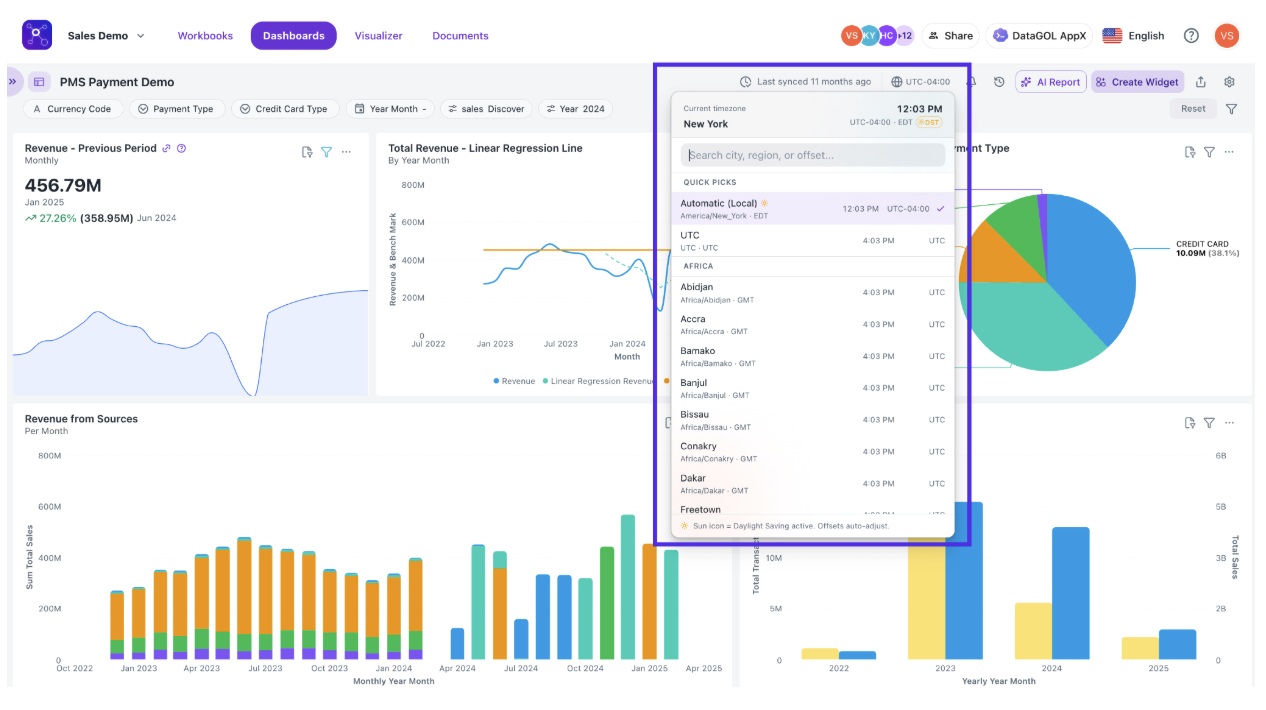
On each dashboard page, you can see the Timezone setting option:
How It Works
Option 1 — Automatic Detection (Recommended)
DataGOL automatically detects your local timezone and adjusts all dates and times accordingly.
What you see:
- All widgets data is updated based on your local time
- Date filters (e.g. "Today", "This Week") match your local calendar
Option 2 — Set Your Timezone Preference
If you want to view dashboards in a specific timezone (e.g. you're travelling, or managing data across regions):
- Select your preferred timezone location from the dropdown (e.g. Australia/Sydney)
For Embedded Analytics
If DataGOL is embedded inside your organisation's portal, a one-time setup is required:
- This is configured during the embedding process setup
- Turn ON the Enable Timezone Selection
- Once done, all users on that portal automatically get localised time, forever
What Doesn't Change
- Your underlying data is untouched — it stays in UTC
- Historical data displays correctly (as long as source data was stored in UTC)
Want this set up for your team?
Contact your DataGOL admin or reach out to our support team to get started.
Was this helpful?